
How do I build and send a quote?
Open the quote builder from the property
On the property’s panel, start a quote. You’re quoting this property specifically, so the services and pricing you stage apply to it.
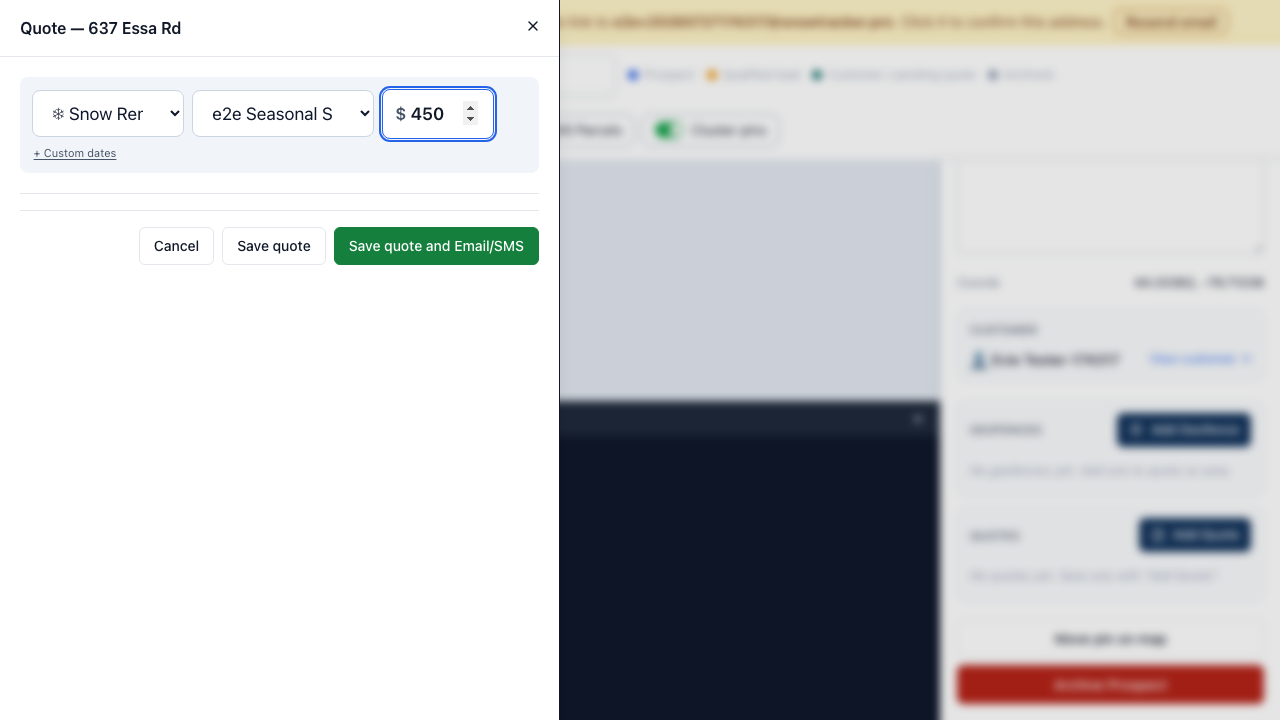
Stage the services and set the price
Add the service (or several options for the customer to choose between) and set pricing. You can review the whole quote before anything is sent.
Send it — email or text, your pick
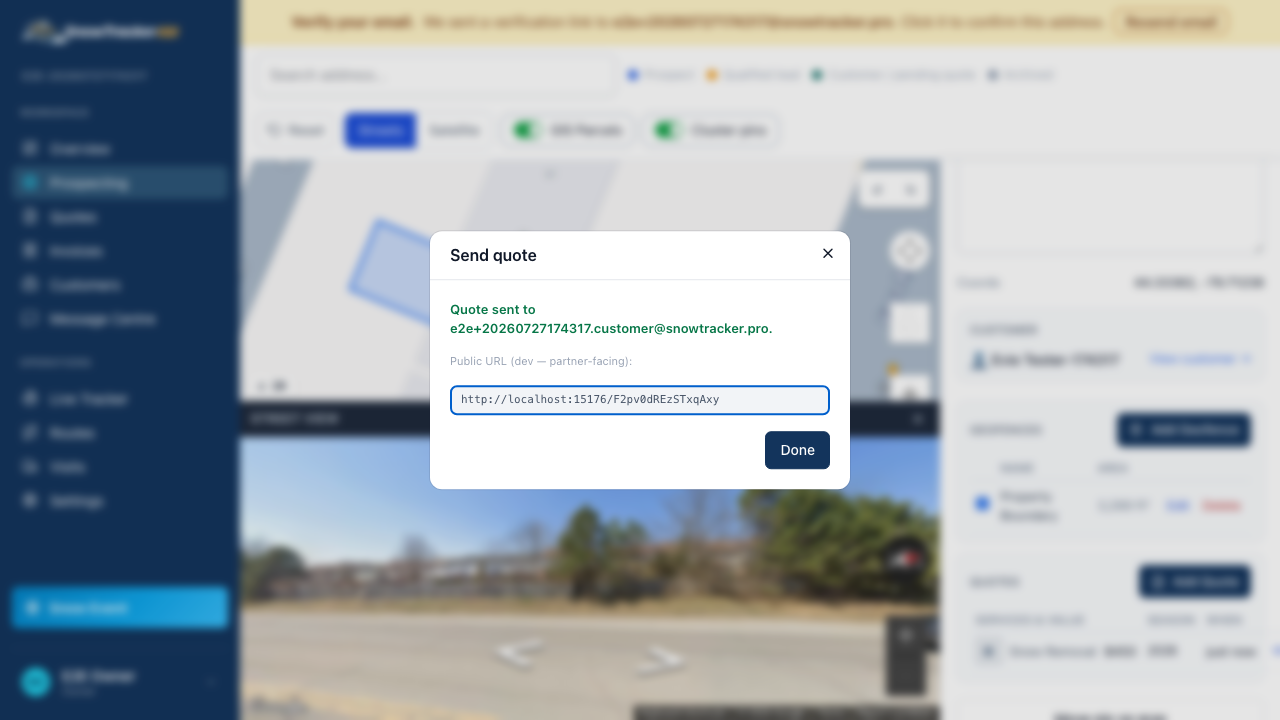
Send quote goes to one recipient over one channel — email or SMS, both carrying the same accept link. The recipient matters: whoever accepts becomes the customer on file. Once sent, a quote is locked; if something needs to change, edit the draft copy and send again.
Need paper? Download the PDF
Every quote has a branded PDF (Download PDF on its drawer) with a QR code that scans straight to the online accept-and-pay page — handy for mailboxes and door drops.
Watch for the acceptance
You’ll see the quote’s status change the moment the customer accepts and pays — no need to chase. Quoting an existing customer works the same way: quote one of their properties and the accept flow recognizes them, no duplicate account.
What acceptance actually sets in motion — invoice, season binding, portal account — is “What happens when a customer accepts a quote?”. For what the customer sees, send them the guides under “For your customers”.