
How do I let customers pay by cash or e-transfer?
Plenty of customers still pay by e-transfer or cash at the door. Cash, e-Transfer, and Cheque are each their own section in Settings → Billing & Payments — turn on the ones you take, and the invoice never pretends it’s paid before the money shows up.
Turn on the methods you accept
Flip Accept cash, Accept e-Transfer, or Accept cheque — each independently. For each, choose Available to all customers (offered on every quote automatically) or Only enable on specific quotes (you add it while building a quote). It has to be on before the quote goes out.
Write the instructions once
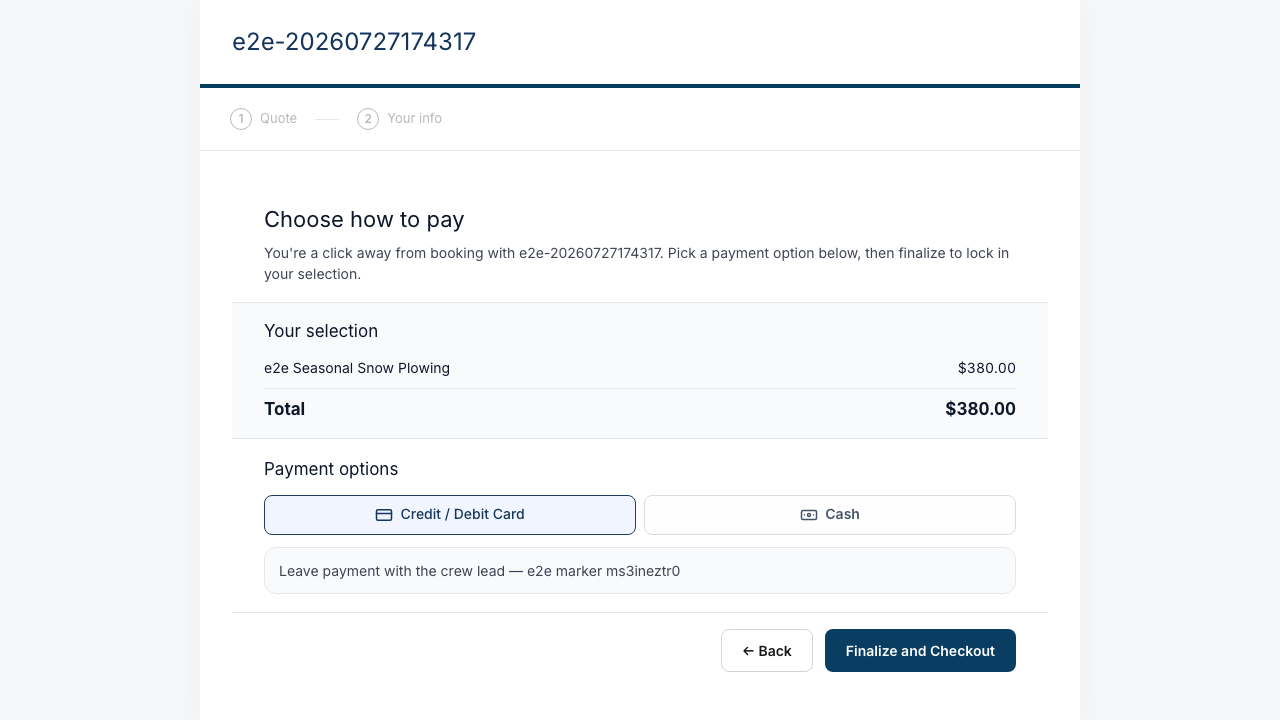
Cash has a Cash instructions field (“Pay the driver during your first service visit”, say). e-Transfer takes your payments email, a security question and answer, plus additional instructions. Whatever you write here is exactly what the customer sees at checkout and gets by email — keep it current.
The customer picks it at checkout
When they accept the quote, your enabled methods appear beside card. Picking cash or e-transfer finalizes the quote without charging anything.
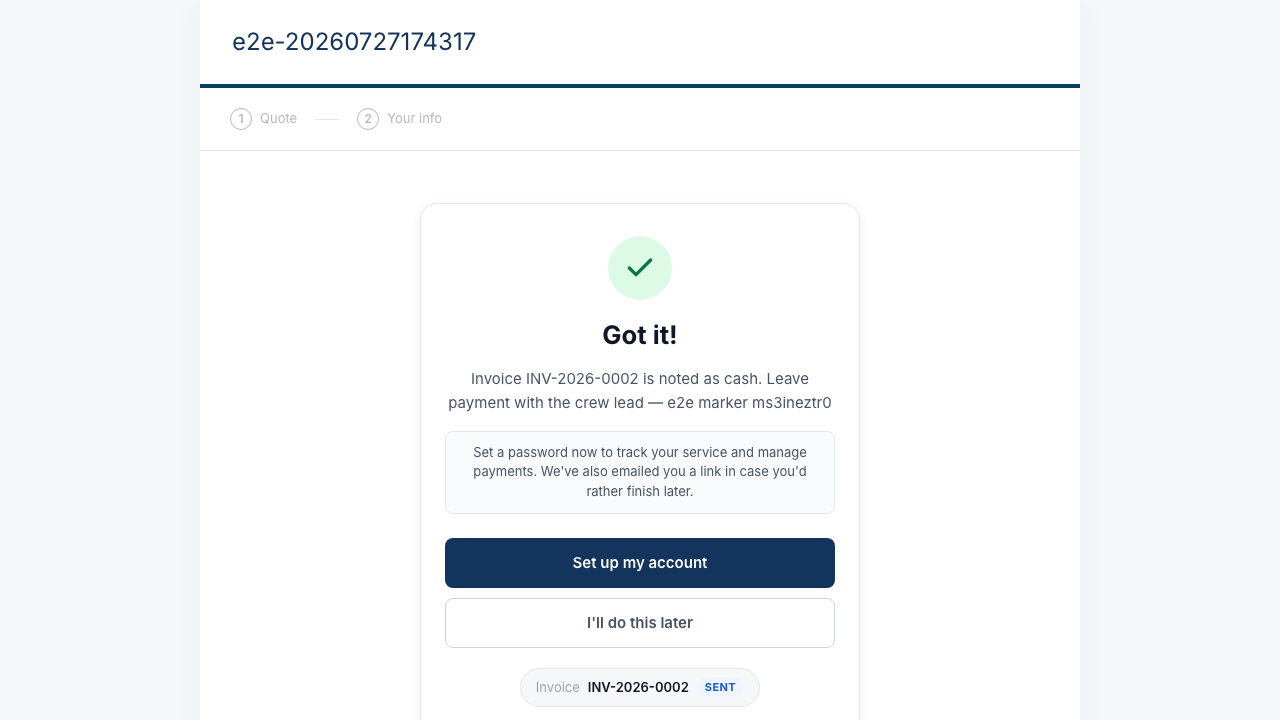
They get your instructions immediately — and by email
Your instructions show right on the confirmation screen, and the same details are emailed to them for reference. e-Transfer customers see the address, security answer, and a reference number.
Confirm receipt when the money arrives
The invoice stays unpaid, locked to the chosen method, until you mark it received on the property’s season cell. That’s your books staying honest — nothing shows paid until you say so.
Tax can apply differently per method — a rate’s Applies to switches decide, so you can charge HST on cards and skip it on cash. See “How is tax handled on quotes and invoices?”.